Cast approval: get your cast list signed off by production
59 sec
Getting cast signed off by production usually means a PDF of headshots or a spreadsheet attached to an email, a reply saying who is in and who is out, and those answers typed back into your booking system by hand. When the cast changes, the whole round starts again with a new attachment.
RosterDeck keeps production approval next to the booking. Create a named cast list on the job, send it to your production contact from the Email page, and production review headshots and full profiles on a link. Their decisions come back into the job and to your inbox the moment they send them. This walkthrough follows one cast list of 49 shoppers and tourists for the Harbour Lights III job, from creating the list to production’s answer.
Every action in this walkthrough corresponds directly to RosterDeck’s live production features. Click any timestamp to jump to that moment.
Name the list, choose the job dates it covers and decide what production can see.
Open the job on the Job page, expand Cast approvals and choose New cast list. Name it after the look rather than the date, such as “Featured diners” or “Week 1 crowd”, because production see the name at the top of their page. Pick the job dates the list covers: one decision per person covers all of them, so nobody is approved on Monday and declined on Tuesday. Then choose what production can see: cast contact details, and whether they can pull the list into their own Microsoft Excel or Google Sheets, kept up to date automatically. If one of the dates asks cast for a custom image, you can include that as well. The new list sits under Cast approvals with its dates, its cast count and the date its link closes.
Pick the list and its cast on the Email page, add your production contact and send.
On the Email page, select the job date and open the Production sheet with Approval chosen. Pick the cast list, then tick the cast to include from the people cast on its dates. Anyone who has declined, is unavailable, has been released or did not turn up is never offered. Add your production contact’s name and email, check the subject and message, and preview the email before you send the approval request. Each list has one link for its whole life: add cast later and they appear on the link production already has as pending, so only the new faces need an answer.
Production see a card for every artist, open full profiles and export the cast, with no login.
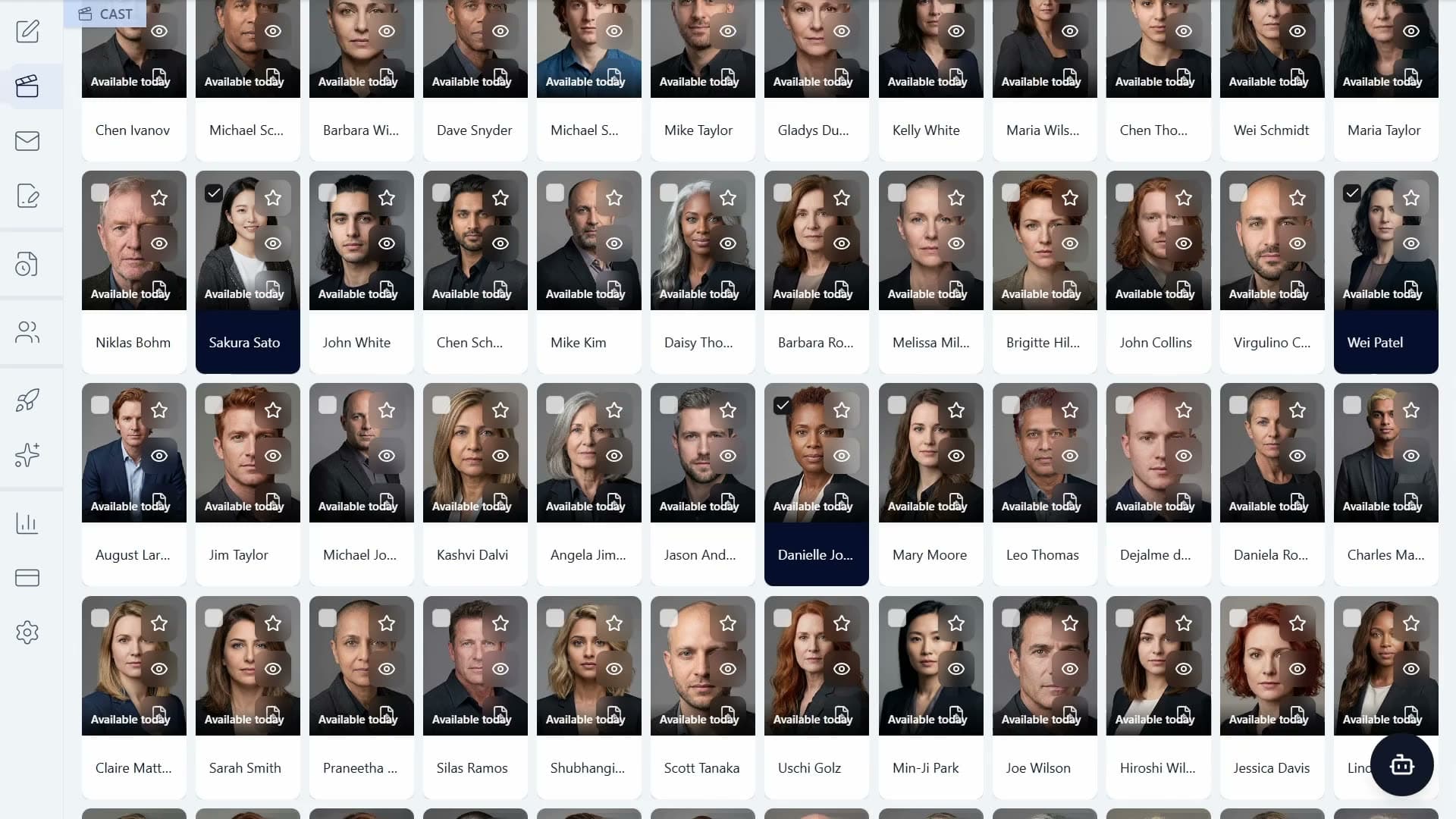
Production open the link in a browser. Each artist has a card with their headshot and the dates they work, and the list can be searched by name, filtered by gender, role or decision, or switched to show selfies. Opening a profile shows the artist’s photos and characteristics such as playing age, build and hair colour, along with their measurements, experience, wardrobe, DBS check date, driving licences and dietary requirements, and their contact details if you chose to share them. Production approve or decline artists, and can export the cast as a PDF with each headshot or selfie and the name or measurements, as a multi-photo PDF with up to four photos per person in a grid or comp card layout, or as an Excel spreadsheet.
Approve or decline everyone at once, add a note and send the response to the agency.
Approve All and Decline All settle every artist in the current view at once, and Select All lets production act on a chosen group. A note for the agency is optional. Submitting shows how many artists are approved and declined; production confirm their name and send, and the agency is emailed the result, with any declined artists named alongside production’s reason where they gave one. On the Job page each cast list then shows its approved, declined and awaiting counts, and declined artists are marked as declined on the dates the list covers. The link stays open after a response, so production can change a decision or answer cast added later and send an update.
Built specifically around UK film, television, and commercial casting standards.
Each cast list keeps a single production link. Add cast at any time and they appear on it as pending, so production only answer the new faces and never work from an out-of-date copy.
Production review, approve and export the cast in any browser with no login, password or app, and the link closes automatically a set number of days after the last date on the list.
Cast contact details only appear when you allow it, and access for production’s own Excel or Google Sheets is switched on list by list, covering nothing outside that link.
Approved, declined and awaiting counts appear against every cast list, declined artists are marked on the dates the list covers, and the agency is emailed the result with production’s reasons.
Common questions about how this workflow operates in RosterDeck.
Other walkthroughs covering the rest of the platform.